
Directory profile
Fill in your business details, preview how customers will see you, and publish your listing on Contractors Near Me.
Your directory profile is the public listing customers find on Contractors Near Me (contractorsnearme.ai). You build it in MyBuildX and check it at https://mybuildx.com/profile/preview (Your profile). Directory visibility requires Pro or Studio. ID is the free MyBuildX workspace; a contractor.id page is free. See Plans and pricing.
What you can do
- Fill in your listing in Settings: business name, handle, trade, phone, website, city, about text, coverage, specialties, credentials and offers.
- Upload project photos.
- Preview the listing privately.
- Publish your contractor.id page with Publish profile. Add a paid plan if you want the directory listing.
- Copy your Contractor ID, profile slug and contractor.id short link from Home.
Get listed
The Get listed on CNM checklist on Home tracks four of these steps: business info, photos, preview, and publish.
- Add your business info. In Settings → Business, fill in Business name, Handle (claim), Trade, Phone, Website, and City (with a 2-letter state). Press Save.
- Add profile details. In Settings → Profile, write the About text (up to 2,000 characters), and set Phone, Service radius (miles), and Specialties. Saving shows “Profile saved, CNM payload updated.”
- Upload project photos at https://mybuildx.com/photos/uploads. See Photos and videos.
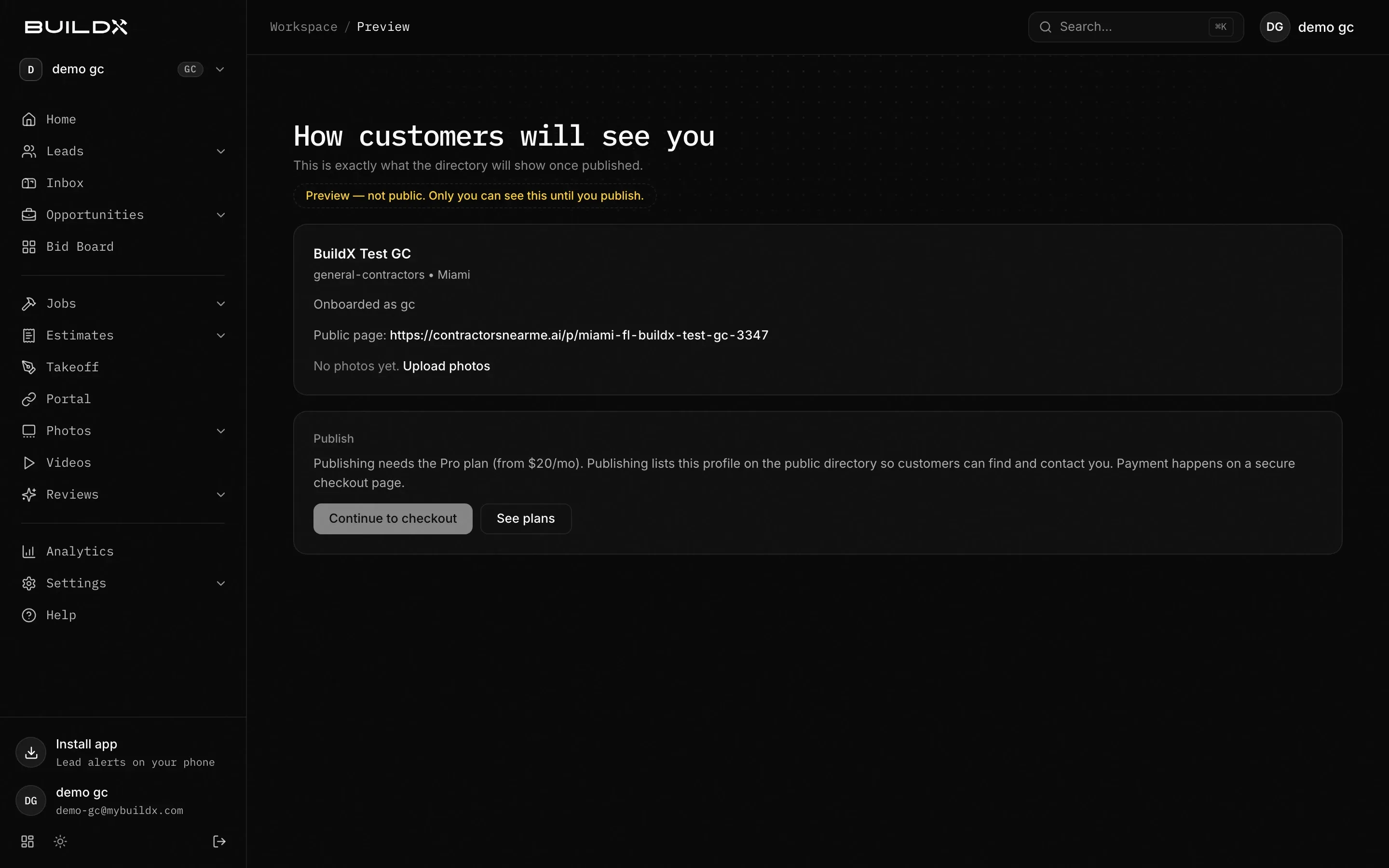
- Preview your profile at https://mybuildx.com/profile/preview. You see your business name, trade, city, about text, photos, and the Public page link on contractorsnearme.ai.
- Publish. On the preview:
- Press Publish profile to put your contractor.id page online for free. With Pro or Studio, publishing also lists your business in Contractors Near Me search.
- If you haven’t published and want to start monthly Pro, press Get Pro ($20/mo) when shown. For yearly Pro or Studio, go to MyBuildX pricing. A subscription does not guarantee leads.
If you see Publish your listing in Settings → Billing, it opens Your profile, where you can publish.
Your handle and links
- The handle you claim in Settings → Business must be 3 to 40 characters: lowercase letters, numbers and hyphens. It’s unique across BuildX.
- With a handle, you get a contractor.id short link. It starts working once your listing is published.
- Home’s listing card shows your Contractor ID and Profile slug with Copy buttons, and your QR code once the listing is published.
Make the listing stronger
- Credentials (Settings → Credentials): upload PDFs under Licenses, Insurance, Credentials, or Trust Badges with Upload for review. Each upload shows Pending review until BuildX checks it.
- Offers (Settings → Offers): add a title, discount and expiry with Create offer. Active offers are sent with your profile to Contractors Near Me.
- Reviews: reply to them on Reviews.
Good to know
- Customer and supplier accounts see Not applicable: listings are for contractors.
- Subcontractor accounts can preview but don’t get the publish panel. To get listed as a sub, see Claim your profile.
- If you already have an unclaimed profile on Contractors Near Me, claim it instead of starting over. See Claim your profile.
- Changes you save in Settings sync to Contractors Near Me. If the listing card says your directory link isn’t ready yet, it appears once your profile syncs.